How to Sign Up for Deepcoin (2026 Latest): Create a Cashback Account with KYC Verification

📚 Browse by Category
Complete Guide to Deepcoin Registration 2026
Looking for how to sign up for Deepcoin?
This guide walks you through the complete 2026 Deepcoin registration process, from account creation to KYC verification and TetherSave cashback integration, with actual screenshots.
What You Need to Sign Up for Deepcoin
1. Email Address
- A valid email address for Deepcoin registration
2. ID Document (for KYC Verification)
- Passport
- Driver's License
- ID Card
- Residence Permit
3. Smartphone
Required for 2FA setup, ID document photos, and selfie verification.
How to Sign Up for Deepcoin (Step-by-Step)
Step 1: Access TetherSave Exclusive Sign-Up Link
👉 Create TetherSave Cashback Account
👉 Go to Deepcoin Exchange Details Page
Signing up through this link automatically connects you to TetherSave cashback benefits.
Step 2: Enter Email and Password
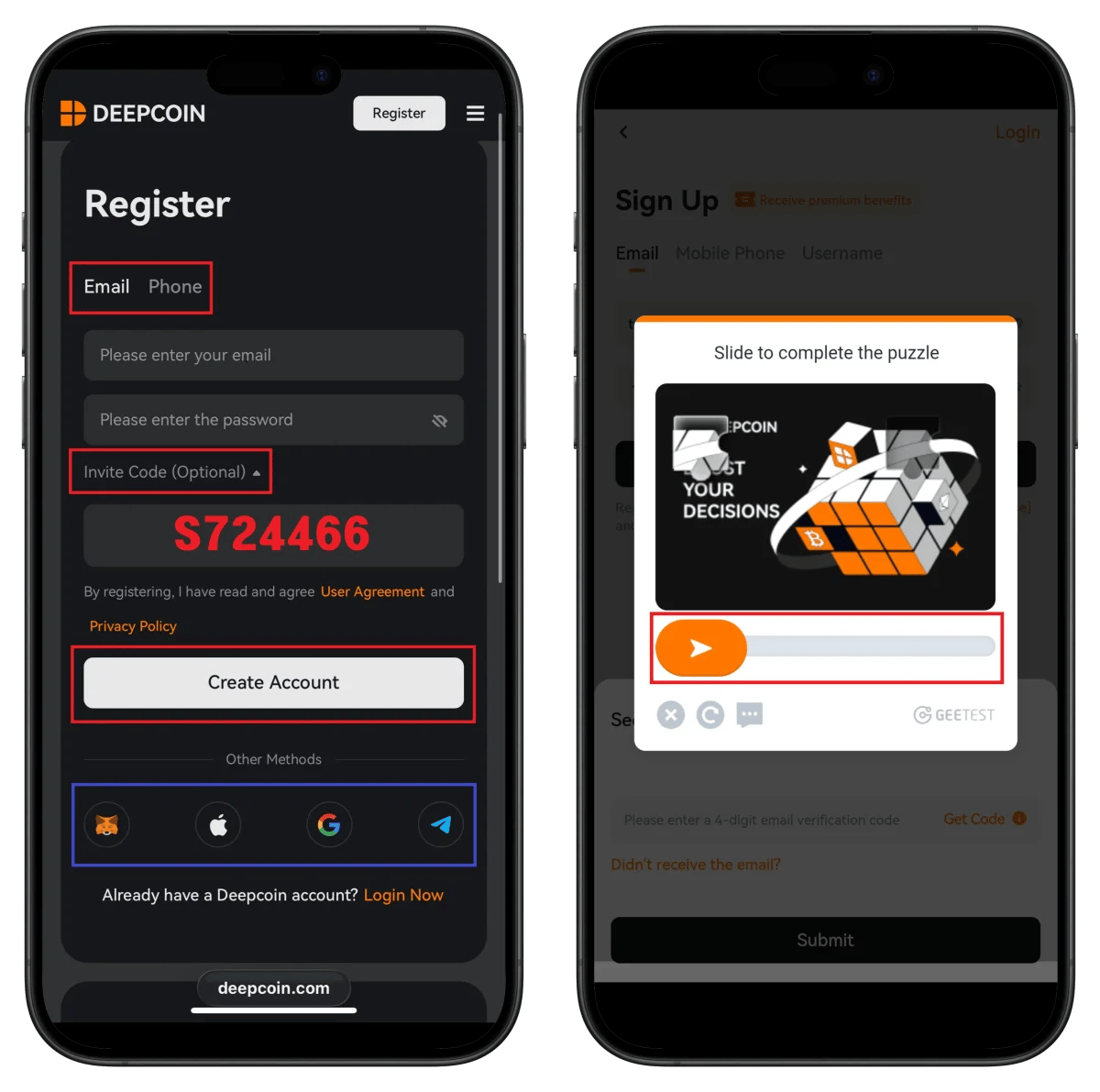
- Enter email/password
- Confirm invitation code S724466
- Check terms agreement
- Click Create Account
- Complete puzzle slider verification
💡 Quick sign-up with Apple, Google, or Telegram is also available.
Step 3: Enter Email Verification Code
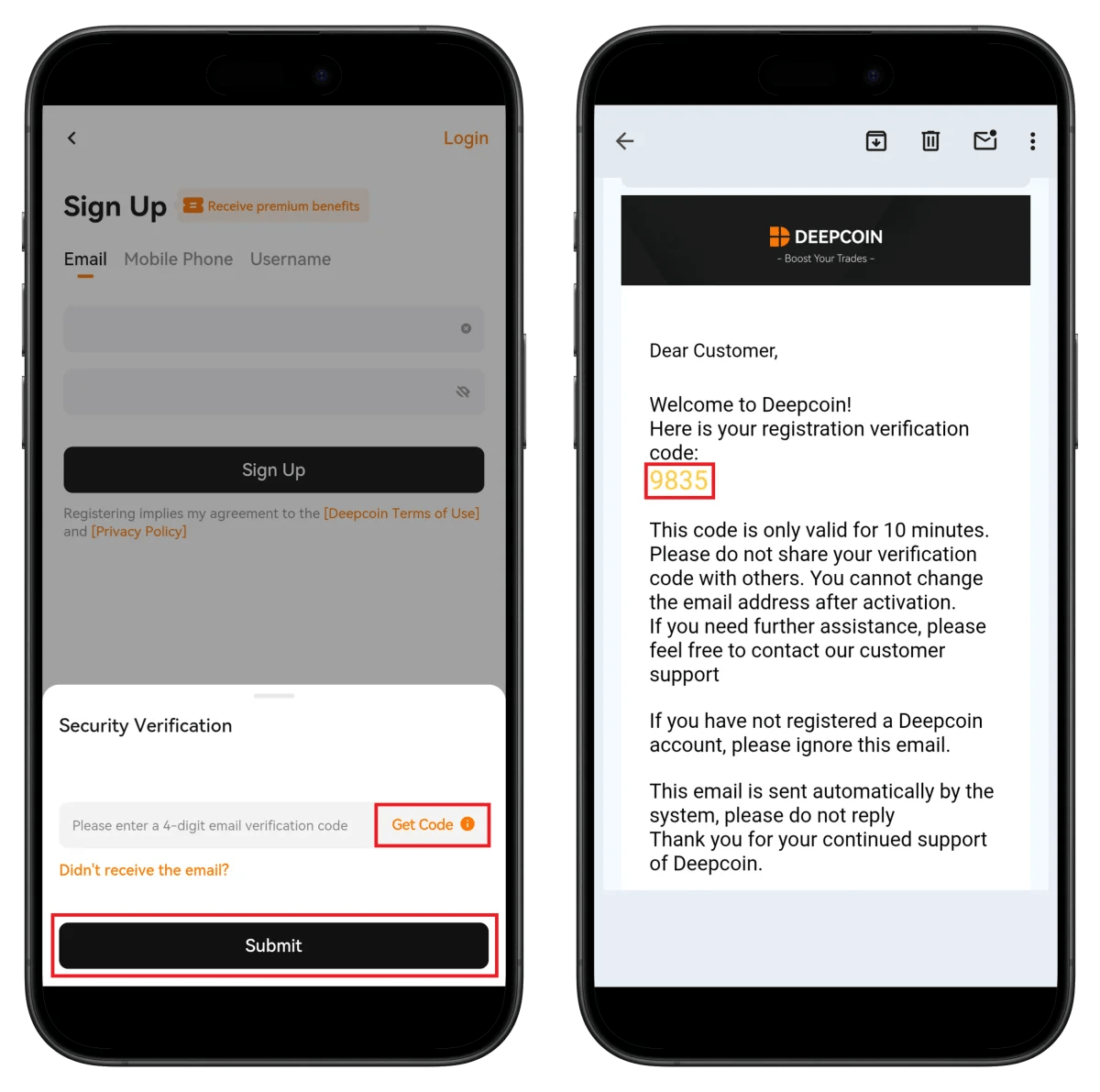
- Click Get Code to request verification code
- Enter the 4-digit verification code from your email
- Click Submit
⚠️ The verification code is valid for 10 minutes.
Step 4: Start Identity Verification
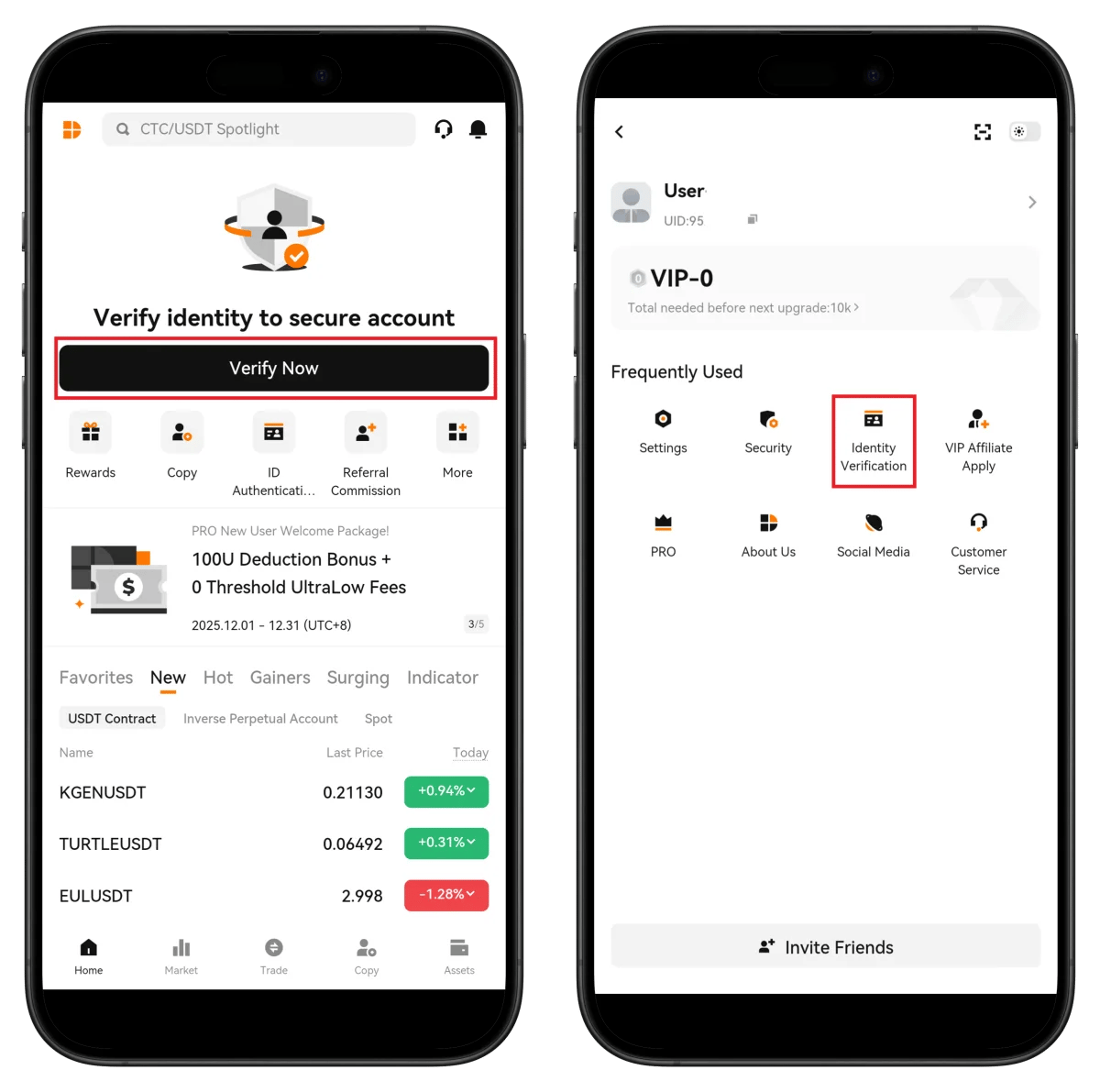
- Click Verify Now on the main screen
- Check your UID in the profile menu (needed for TetherSave integration)
- Click Identity Verification
💡 Also check out the 100U Deduction Bonus promotion.
Step 5: Select Country and Check Verification Level
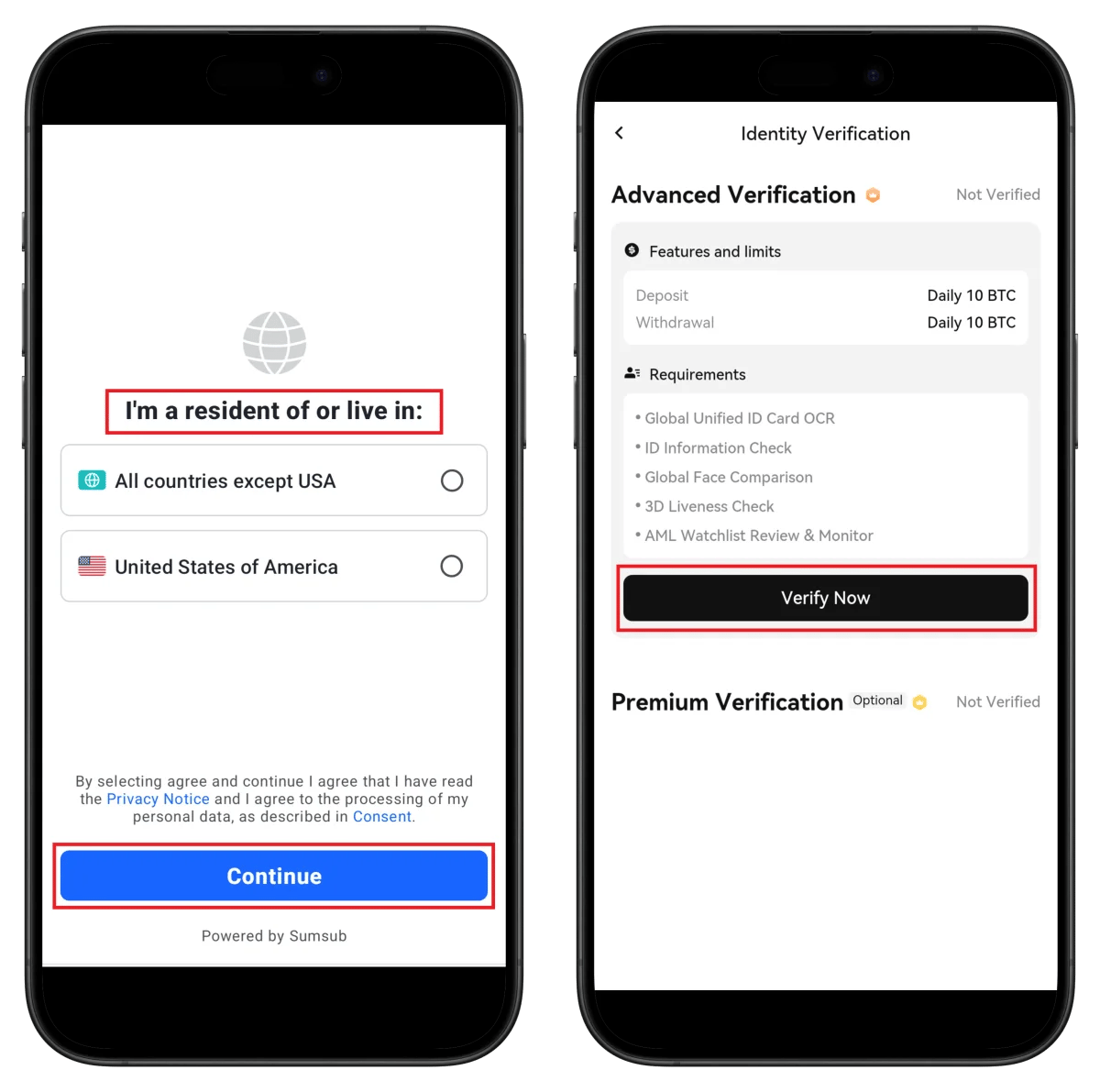
- Select residence country (All countries except US / US)
- Click Continue
- Click Verify Now
Upon completion: Daily deposit/withdrawal limit of 10 BTC
Step 6: Select ID Document Type

- Click Continue
- Select ID issuing country
- Select ID type (Passport recommended)
⏱️ Estimated time: About 2 minutes
Step 7: Capture and Confirm ID Document
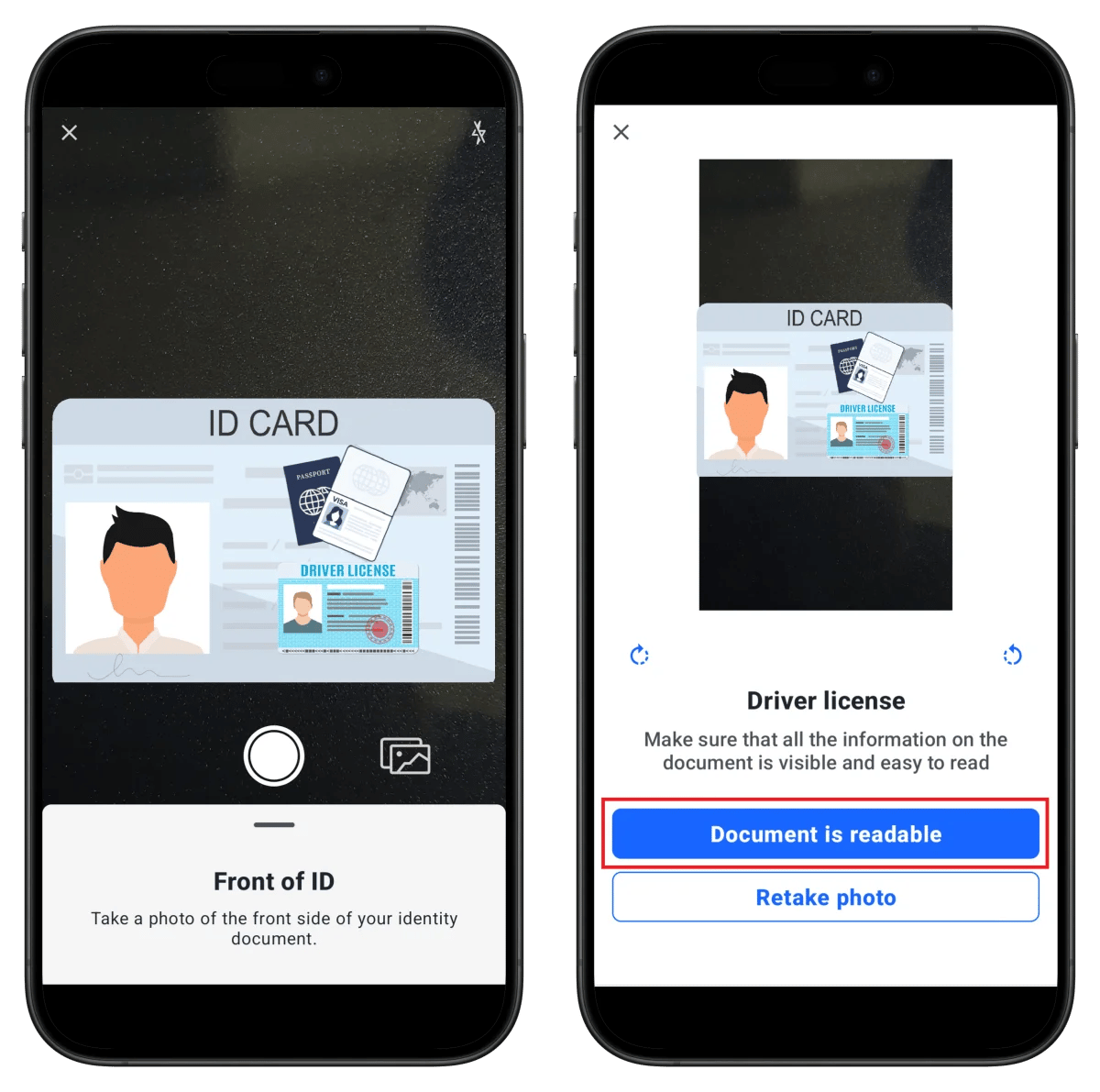
- Capture front of ID
- Click Document is readable
- Capture back of ID
💡 Make sure all information is clearly visible.
Step 8: Confirm ID Back and Take Selfie
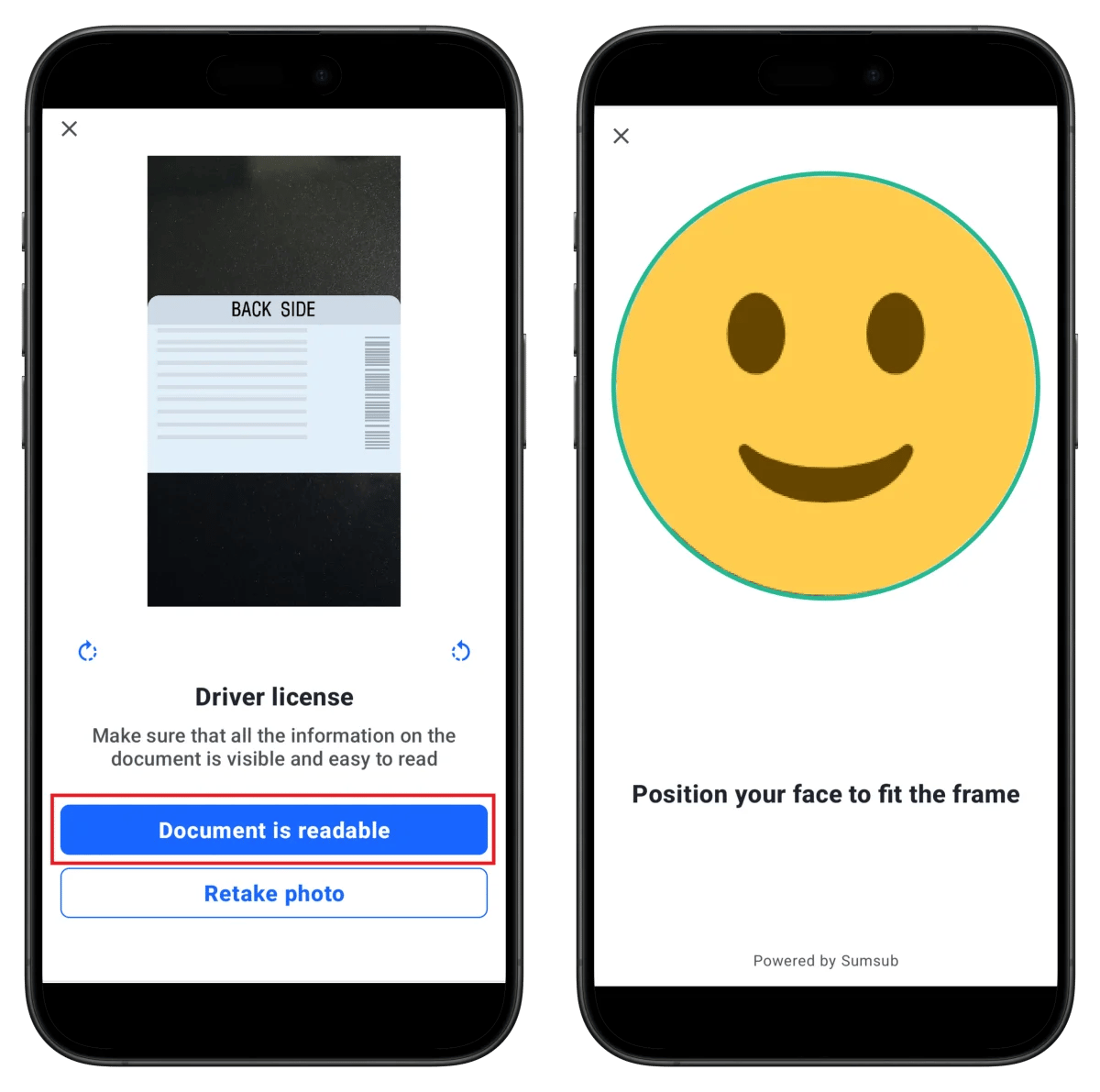
- Confirm back photo and click Document is readable
- Position your face within the circular frame
- Automatic capture proceeds
Step 9: Review Process and Verification Complete
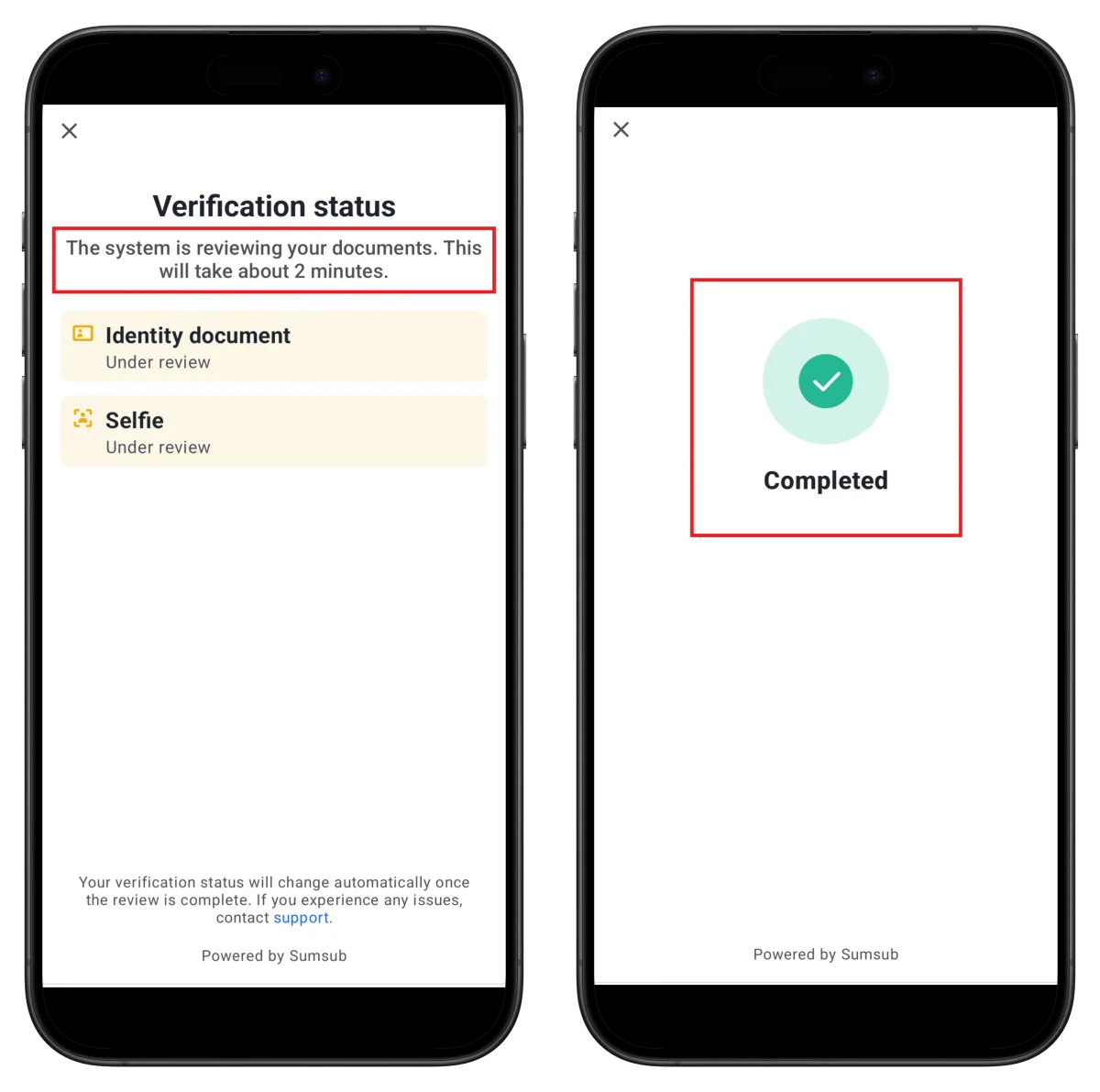
- Identity document: Under review
- Selfie: Under review
✅ Completed - Verification complete (approximately 2 minutes)
How to Find Your Deepcoin UID
To connect cashback to TetherSave, you need your Deepcoin UID (unique identifier).
- Log in to Deepcoin app or website.
- Check the UID number next to User in the profile menu.
👉 Detailed Guide on Finding Deepcoin UID
How to Connect TetherSave Cashback
- Deepcoin Sign Up - Sign Up
- Sign up for TetherSave - Sign Up
- Go to My Page → Exchange Connection menu
- Select Deepcoin
- Enter your verified UID
- Connection complete!
Frequently Asked Questions (FAQ)
Q: How long does Deepcoin KYC verification take?
Using the Sumsub automatic verification system, it usually completes within 2 minutes. Manual review may take up to 24 hours if required.
Q: What benefits do I get by signing up through TetherSave referral link?
By signing up through TetherSave, you can receive cashback on a portion of your trading fees. You also get Deepcoin's 100U Deduction Bonus benefits.
Q: What should I do if my ID verification is rejected?
Check the rejection reason and resubmit with clearer photos. Using a passport is recommended. All information must be clearly visible.
Q: What is the limit after completing Deepcoin Advanced Verification?
After completing Advanced Verification, your deposit/withdrawal limit is set to 10 BTC daily.
Q: What if I don't receive the email verification code?
Check your spam folder. If you still haven't received it, click the Get Code button again or try with a different email address. The code is valid for 10 minutes.
Written as of January 2026.
Related Posts

How to Sign Up for Gate.io (2026 Updated): Create a Cashback Account with KYC Verification

How to Sign Up for BingX (2026 Latest): Create a Cashback Account with KYC Verification